> ## Documentation Index
> Fetch the complete documentation index at: https://help-center.quizify.io/llms.txt
> Use this file to discover all available pages before exploring further.
# ActiveCampaign
> Connect ActiveCampaign to automatically sync quiz leads, contact details, answer tags, and result data directly to your ActiveCampaign lists and automations.
## Why Connect Quizify with ActiveCampaign?
With the **Quizify–ActiveCampaign** integration, you can:
* **Automatically sync new quiz leads** to your ActiveCampaign contacts and lists in real time.
* **Collect complete customer information** such as Email, First Name, Last Name, and Phone Number.
* **Send answer tags and result data** for laser-focused subscriber segmentation.
* **Keep your ActiveCampaign lists updated** continuously without manually exporting or importing CSV files.
* **Create personalized email campaigns** and automated nurturing sequences based on quiz responses and product recommendations.
## How to Sync User Data from Quizify to ActiveCampaign
### 1. Enable User Email in Your Quiz
Add a **User Form** to your quiz and enable the **Email** field. The Email field must be set to **Required** for user data to be synced with ActiveCampaign.
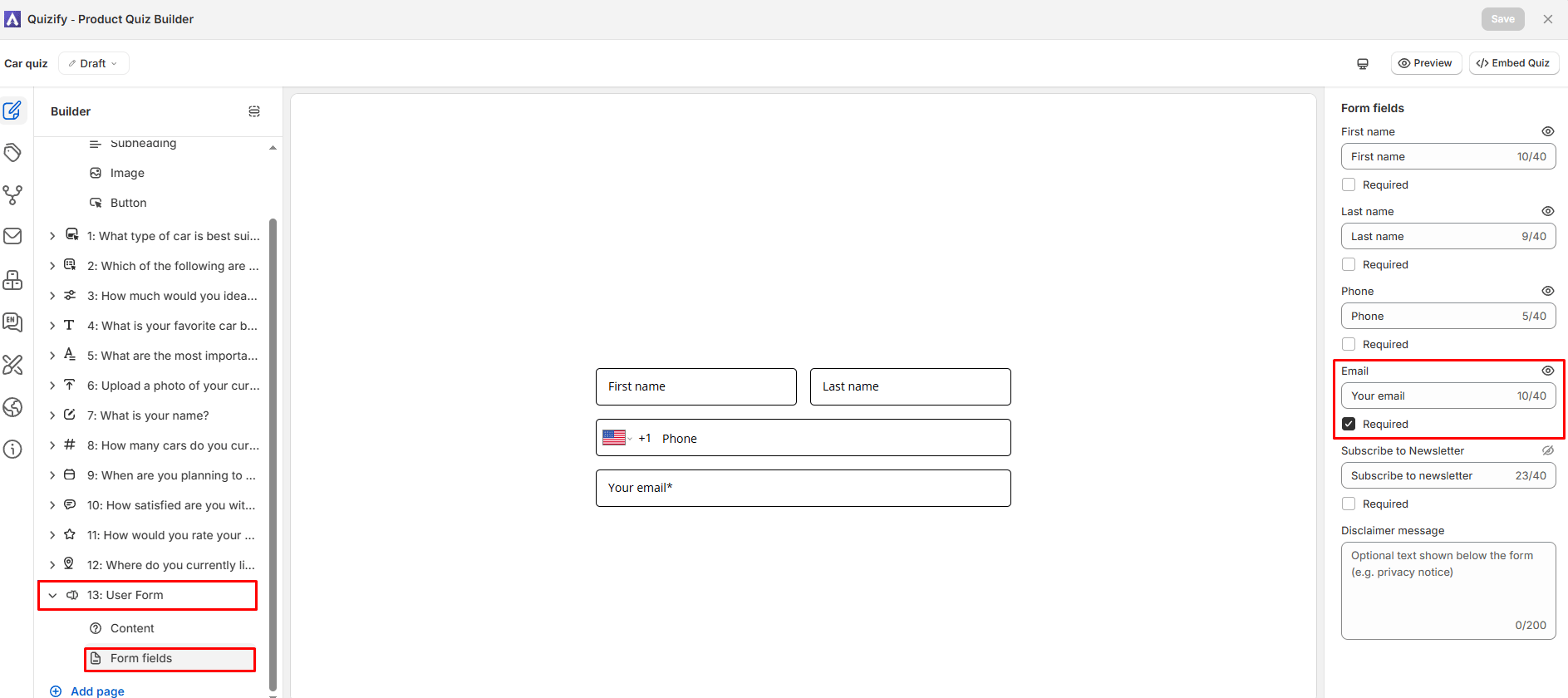 You can also collect additional contact information, such as:
* **First Name**
* **Last Name**
* **Phone Number**
* **Address**
* **Answer Tags** (mapped to question responses)
### 2. Connect ActiveCampaign with Quizify
Once your quiz is ready, connect your ActiveCampaign account:
* Open your quiz in Quizify.
* Go to the **Integration** tab.
* Select **Marketing** and choose **ActiveCampaign**.
* Enter your ActiveCampaign **API URL** and **API Key**.
### 3. How to Get Your ActiveCampaign API Key
To retrieve your API URL and API key from ActiveCampaign:
* Log in to your **ActiveCampaign** account.
* Click the **Settings** gear icon in the bottom-left navigation bar.
* In the Settings menu, click **Developer**.
* Under the **API Access** section, you will see your **API URL** (e.g. `https://youraccountname.api-us1.com`) and **API Key**.
* Copy both the **API URL** and **API Key**.
* Return to Quizify, paste both values into the connection form, and click **Connect**.
> **Note**:-
> Ensure you copy the entire API URL including `https://` without any trailing slashes or blank spaces. Keep your API key secure.
### 4. Select ActiveCampaign List
* After your API details are validated, Quizify will automatically fetch and display the contact lists available in your ActiveCampaign account.
* From the dropdown, select the target **ActiveCampaign List** where new quiz leads should be added.
* Click on **Update** to initiate and activate synchronization of user records with the chosen ActiveCampaign list.
> **Note**:-
>
> * Quizify will sync contact details and attach quiz tags directly to the subscriber in ActiveCampaign.
> * You can update the chosen list or click **Disconnect** at any time if you need to pause sync or switch accounts.
### 5. What Data Quizify Syncs with ActiveCampaign
Depending on the fields enabled in your quiz User Form and question settings, Quizify can sync the following customer data:
| ActiveCampaign Field | Quizify Source | Description |
| :------------------- | :---------------------- | :--------------------------------------------------------- |
| email | User Form: Email | Email address entered by user (**Required**) |
| firstName | User Form: First Name | First name provided by user in the user form (first\_name) |
| lastName | User Form: Last Name | Last name provided by user in the user form (last\_name) |
| phone | User Form: Phone Number | Phone number entered by user in the user form (phone) |
| tags | Quiz Responses | Selected answer tags applied as contact tags |
This data allows you to create targeted ActiveCampaign segments and personalize your email marketing campaigns with precision.
### 6. Turn Quiz Responses into Targeted Email Campaigns
The real benefit of connecting Quizify with ActiveCampaign is what you can do with the data after it is synced. Instead of treating every lead the same, you can use the rich information collected through your quiz to create a personalized marketing experience:
* **Segment users based on their interests**: Group contacts by the specific answers they chose in your quiz (e.g., skin concerns, fitness goals, dietary preferences).
* **Create personalized email campaigns**: Greet new subscribers with dynamic email copy and recommendations tailored to their quiz results.
* **Send follow-up emails to specific groups**: Deliver specialized promotional offers or educational tips to targeted customer segments.
* **Build automated customer journeys**: Trigger automated multi-step automation funnels in ActiveCampaign the moment a lead finishes the quiz.
* **Deliver more relevant product recommendations**: Re-engage shoppers with emails showcasing the exact products recommended on their quiz result page.
## Troubleshooting
* Ensure your quiz contains a User Form slide with the Email field set to required.
* Check that your ActiveCampaign API URL is formatted correctly (including `https://` and without trailing slashes).
* Confirm that your ActiveCampaign API key is active, valid, and has not been regenerated or revoked.
* Tags appear directly on the contact's profile in ActiveCampaign under the **Tags** section.
* Verify that you have clicked **Update** after selecting your ActiveCampaign list in Quizify.
You can also collect additional contact information, such as:
* **First Name**
* **Last Name**
* **Phone Number**
* **Address**
* **Answer Tags** (mapped to question responses)
### 2. Connect ActiveCampaign with Quizify
Once your quiz is ready, connect your ActiveCampaign account:
* Open your quiz in Quizify.
* Go to the **Integration** tab.
* Select **Marketing** and choose **ActiveCampaign**.
* Enter your ActiveCampaign **API URL** and **API Key**.
### 3. How to Get Your ActiveCampaign API Key
To retrieve your API URL and API key from ActiveCampaign:
* Log in to your **ActiveCampaign** account.
* Click the **Settings** gear icon in the bottom-left navigation bar.
* In the Settings menu, click **Developer**.
* Under the **API Access** section, you will see your **API URL** (e.g. `https://youraccountname.api-us1.com`) and **API Key**.
* Copy both the **API URL** and **API Key**.
* Return to Quizify, paste both values into the connection form, and click **Connect**.
> **Note**:-
> Ensure you copy the entire API URL including `https://` without any trailing slashes or blank spaces. Keep your API key secure.
### 4. Select ActiveCampaign List
* After your API details are validated, Quizify will automatically fetch and display the contact lists available in your ActiveCampaign account.
* From the dropdown, select the target **ActiveCampaign List** where new quiz leads should be added.
* Click on **Update** to initiate and activate synchronization of user records with the chosen ActiveCampaign list.
> **Note**:-
>
> * Quizify will sync contact details and attach quiz tags directly to the subscriber in ActiveCampaign.
> * You can update the chosen list or click **Disconnect** at any time if you need to pause sync or switch accounts.
### 5. What Data Quizify Syncs with ActiveCampaign
Depending on the fields enabled in your quiz User Form and question settings, Quizify can sync the following customer data:
| ActiveCampaign Field | Quizify Source | Description |
| :------------------- | :---------------------- | :--------------------------------------------------------- |
| email | User Form: Email | Email address entered by user (**Required**) |
| firstName | User Form: First Name | First name provided by user in the user form (first\_name) |
| lastName | User Form: Last Name | Last name provided by user in the user form (last\_name) |
| phone | User Form: Phone Number | Phone number entered by user in the user form (phone) |
| tags | Quiz Responses | Selected answer tags applied as contact tags |
This data allows you to create targeted ActiveCampaign segments and personalize your email marketing campaigns with precision.
### 6. Turn Quiz Responses into Targeted Email Campaigns
The real benefit of connecting Quizify with ActiveCampaign is what you can do with the data after it is synced. Instead of treating every lead the same, you can use the rich information collected through your quiz to create a personalized marketing experience:
* **Segment users based on their interests**: Group contacts by the specific answers they chose in your quiz (e.g., skin concerns, fitness goals, dietary preferences).
* **Create personalized email campaigns**: Greet new subscribers with dynamic email copy and recommendations tailored to their quiz results.
* **Send follow-up emails to specific groups**: Deliver specialized promotional offers or educational tips to targeted customer segments.
* **Build automated customer journeys**: Trigger automated multi-step automation funnels in ActiveCampaign the moment a lead finishes the quiz.
* **Deliver more relevant product recommendations**: Re-engage shoppers with emails showcasing the exact products recommended on their quiz result page.
## Troubleshooting
* Ensure your quiz contains a User Form slide with the Email field set to required.
* Check that your ActiveCampaign API URL is formatted correctly (including `https://` and without trailing slashes).
* Confirm that your ActiveCampaign API key is active, valid, and has not been regenerated or revoked.
* Tags appear directly on the contact's profile in ActiveCampaign under the **Tags** section.
* Verify that you have clicked **Update** after selecting your ActiveCampaign list in Quizify.